Microsoft Graph API Integration Services
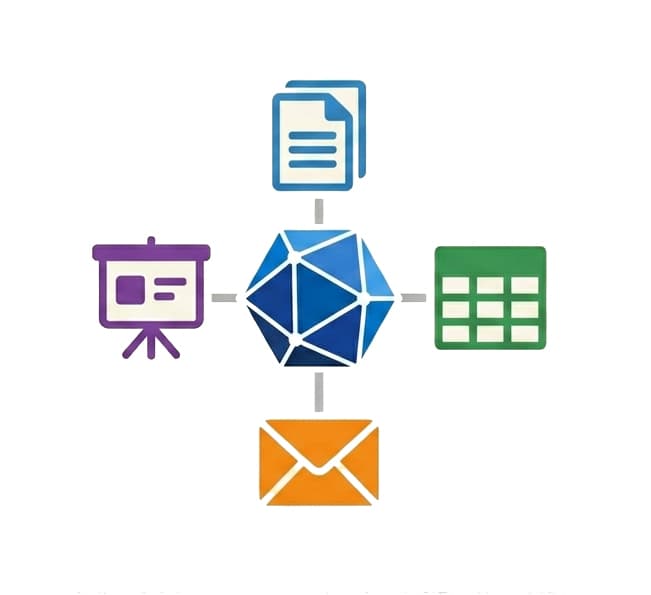
Microsoft Graph API is the single REST endpoint that connects every Microsoft 365 service, including mail, calendar, Teams, SharePoint, OneDrive, and users. Hire our Graph API developers to build the integrations, automation workflows, and webhook listeners that move that data into your apps.
Integration at a Glance
250+ Projects
delivered across integration builds
7 Integration Types
SAP, AI, CRM, Power BI and more
5+ Years
building Office add-in integrations
Free Discovery Call
to scope your integration project
What We Build Into Your Microsoft Graph API Integration
Azure App Registration
We register your add-in in Microsoft Entra ID, configure the correct redirect URIs, and set up the app manifest so Office recognises your add-in and SSO works correctly.
Delegated & Application Permissions
We choose the right Graph permission type for your scenario: delegated permissions when the add-in acts as the signed-in user, application permissions for background or admin-level access.
OAuth 2.0 & MSAL Implementation
We implement the correct auth flow inside Office.js using MSAL, handle the SSO getAccessToken call, and build the fallback dialog for environments where SSO is unavailable.
Email & Calendar Automation
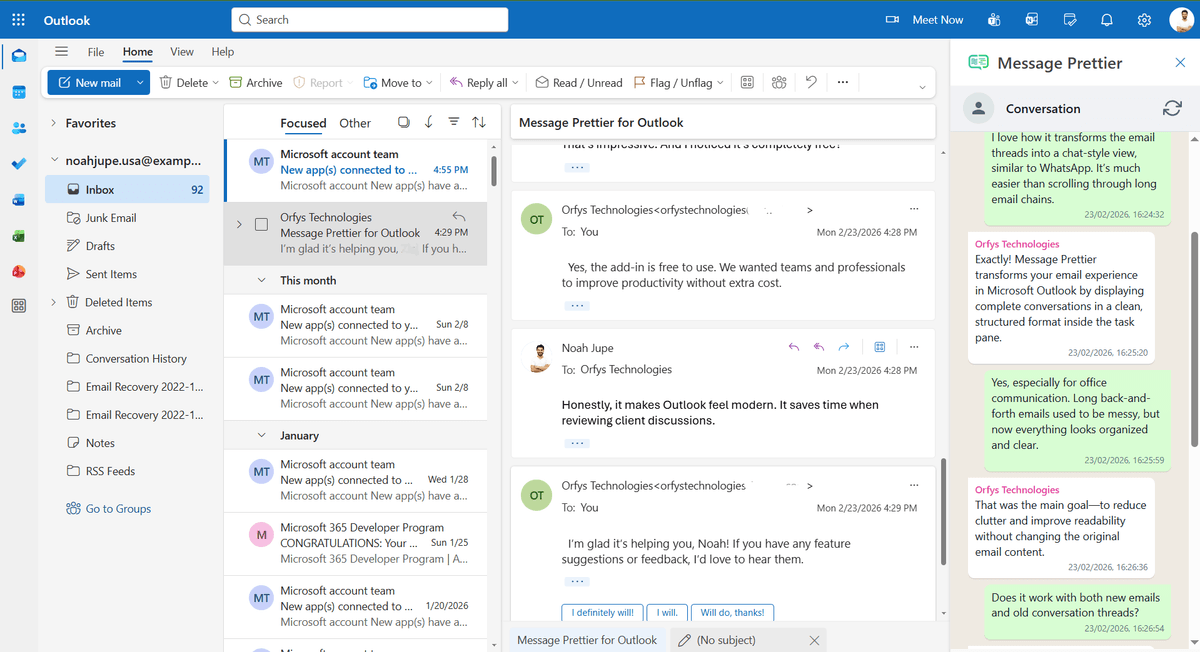
We build email automation on the Graph mail and calendar endpoints: reading and parsing messages, sending replies programmatically, creating and syncing events, and applying categories between your system and the user's Microsoft 365 account.
OneDrive & SharePoint File Access
We build Graph calls that read, write, and manage files in OneDrive and SharePoint directly from Excel, Outlook, or Word add-ins.
Admin Consent Configuration
We configure the admin consent workflow so IT administrators can approve Graph permissions for your add-in during deployment, required for any permission that accesses org-wide data.
Teams & User Profile Data
We access Teams channels, chats, and user profile data via Graph so your add-in can surface org context such as reporting lines, group membership, and presence inside Office.
Webhook Subscriptions
We build Graph webhook subscriptions that push real-time notifications when an email arrives, a calendar event changes, or a SharePoint file updates, so your app reacts instantly without polling.
How the Integration Project Works
- 1
Scope & Permissions Review
We map exactly which Microsoft 365 data your add-in needs to access, such as mail, calendar, files, users, and groups, and identify the minimum Graph permissions required. Least privilege is not optional; AppSource and enterprise IT teams both enforce it.
- 2
Azure App Registration
We register the add-in in Microsoft Entra ID, configure redirect URIs, set up the app manifest for Office SSO, and add the correct Graph API permissions with the right delegated or application permission type.
- 3
Auth Flow Implementation
We implement the OAuth 2.0 flow using MSAL inside the add-in: SSO via getAccessToken where supported, a fallback dialog for older Office versions, and the On-Behalf-Of flow on the server side for Graph calls that require a user token.
- 4
Graph API Build & Testing
We build and test the Graph calls your add-in needs, such as reading mail, writing calendar events, accessing files, and querying user data, against a real Microsoft 365 tenant before any production deployment.
- 5
Admin Consent & Deployment
We configure the admin consent redirect so IT administrators can approve permissions during rollout via Microsoft Admin Center. We document all Graph scopes requested so your client's security team can review before approving.
Our Tech Stack
The frameworks, cloud platforms, and AI models we build Office add-ins and integrations on.



















Industry-Specific Solutions
We tailor our Microsoft development expertise to meet the unique compliance and workflow requirements of your sector.

Finance & Banking
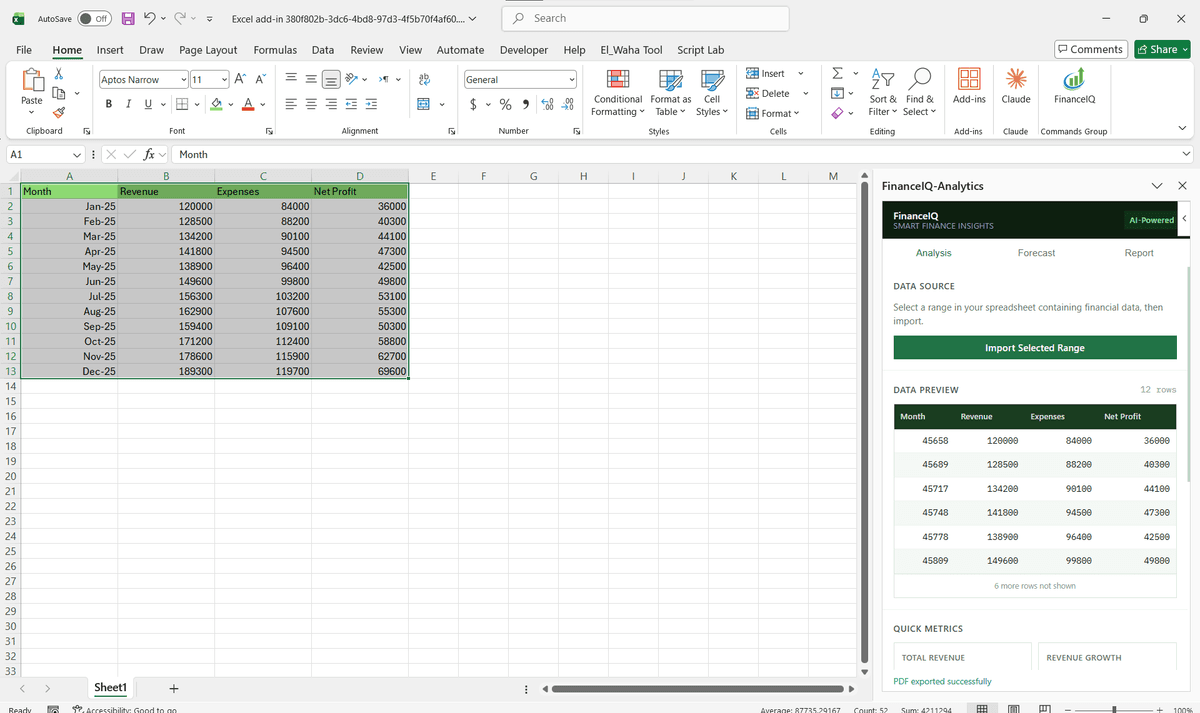
We connect add-ins to Graph mail, calendar, and user data so finance teams pull Microsoft 365 context into Excel and Outlook.

Legal
We use Graph to surface documents, calendars, and contacts inside add-ins so legal teams work without leaving Office.

Healthcare
We access Graph data behind delegated permissions and admin consent so health teams keep patient-adjacent data controlled.

Manufacturing
We pull Graph calendar, mail, and SharePoint data into add-ins so operations teams coordinate from Office.

HR & Recruiting
We use Graph user, group, and calendar data so HR add-ins surface org structure and scheduling inside Office.
Featured Solutions & Interfaces
Four service accounts nobody could explain
A security review at a healthcare scheduling SaaS found four service accounts with mailbox-wide access, and nobody on the engineering team could say which features still needed them. The accounts dated from an era of quick fixes: polling scripts reading every mailbox to catch booking confirmations.
We rebuilt the mail layer properly. Webhook subscriptions now notify the platform when a relevant message arrives, application access is trimmed to the specific shared mailboxes involved through an access policy, and the app registration documents every scope alongside the feature that needs it. The polling infrastructure was deleted rather than migrated. The engineering lead measured the change two ways: booking confirmations that once appeared within five minutes now appear within seconds, and the next security questionnaire took an afternoon instead of a week. Because the product serves many customer tenants, the consent model follows our multi-tenant pattern.
When a flow beats a build
For a single internal automation, a Power Automate flow reaches the same endpoints without any code to own, and that is the right first answer more often than agencies admit. Custom engineering belongs where products meet scale: webhook-driven behaviour, multi-tenant consent, throttling budgets, and permissions a security team will interrogate. If your need is a weekly report landing in a channel, build the flow, and come back when the flow starts being load-bearing.
Microsoft Graph API Integration: Common Questions
Microsoft Graph API is a single REST endpoint that connects all Microsoft 365 services. With one integration point you can automate email workflows, sync calendars, read SharePoint data, and manage Teams, instead of wiring up a separate API for each service. That means less code to maintain and faster delivery.
Ready to Connect Microsoft Graph API to Microsoft 365?
We scope every integration project on a free discovery call. No commitment, just a clear picture of what the build involves and what it will cost.