How to Turn Outlook Into a CRM (And When to Build Custom)
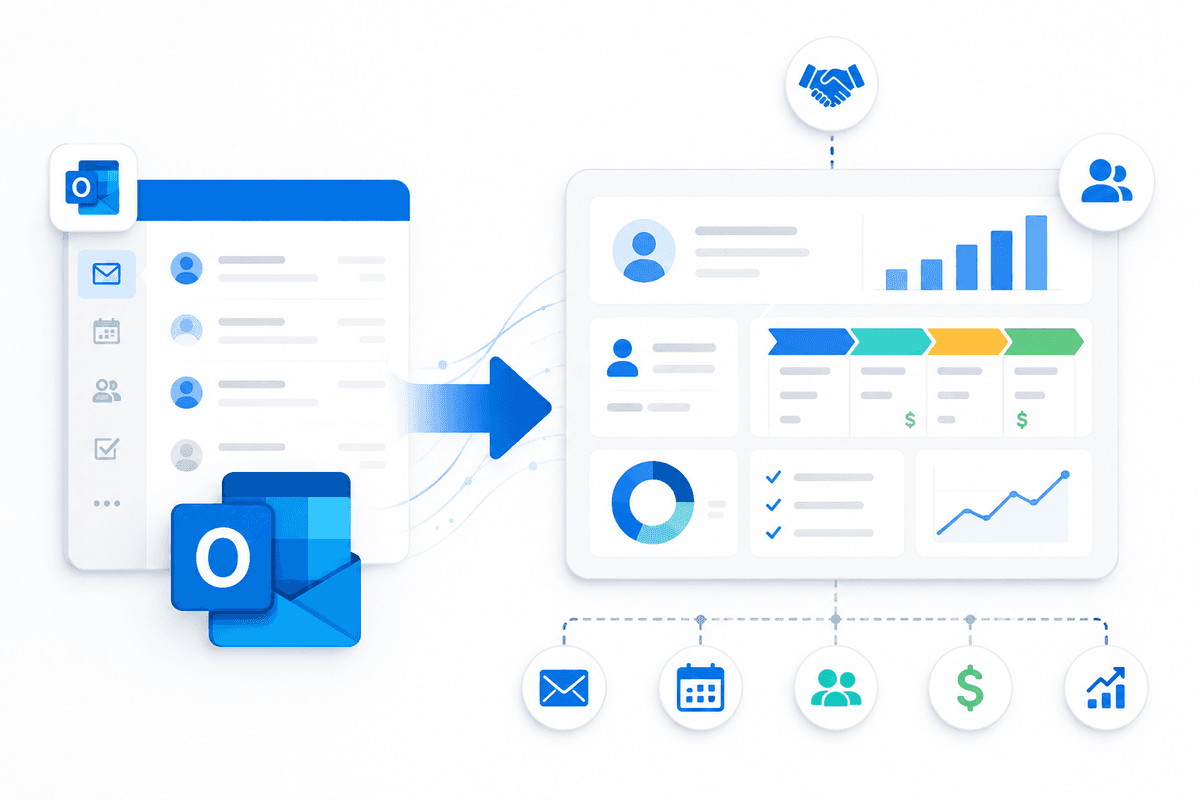
Can you run Outlook as CRM for your sales team? For one to five people with light deal flow, yes. Outlook's native Contacts, Categories, Tasks, and Search Folders give you a usable contact manager at no extra cost. Past that, no. Outlook is an email client, not a real CRM, and it has no pipeline, no shared reporting, and no audit trail. The honest path runs in three steps: start with native Outlook features, add an off-the-shelf CRM add-in when you outgrow them, and build a custom Outlook add-in when neither fits your process or your compliance rules. This guide walks all three, with the trade-offs that decide which one you actually need.
Can you use Outlook as a CRM?
The honest threshold is team size and deal volume. A solo founder, or a team of up to about five people tracking a few dozen open conversations, can run a pipeline inside Outlook and rarely feel the limits. You categorise emails by stage, flag follow-ups, and keep contact records in one place.
The moment two people need to see the same pipeline, report on conversion, or prove to an auditor who touched a record, Outlook stops being enough. That point usually arrives around 5 to 10 active salespeople, or the first time a compliance requirement lands. Below that line, treating Outlook as CRM is a frugal, reasonable choice. Above it, you are fighting the tool every day. The rest of this guide assumes you want to know exactly where that line sits for you.
Native Outlook features that work like a CRM
You can assemble a basic CRM in Outlook from features that ship in the box, no add-in required:
- Contacts and Contact Groups. Store every customer record with notes, and group them by account or segment so a "send update" goes to the right list.
- Categories and colour coding. Assign a colour category per deal stage (Lead, Qualified, Proposal, Won). A glance at the inbox then shows where every conversation sits.
- Search Folders and rules. Build a Search Folder that gathers every email tagged "Proposal" into one virtual view, and use rules to auto-categorise inbound mail. This is your closest native thing to pipeline triage.
- Tasks and follow-up flags. Flag an email for follow-up with a due date, and it lands in your task list so a hot lead does not go cold in the inbox.
- Calendar tied to contacts. Meetings link back to the contact record, giving you a rough activity history per account.
- @mentions for delegation. Pull a colleague into a deal thread with an @mention so handoffs are explicit instead of forwarded and forgotten.
One caveat on platforms: Categories and flags sync across Outlook on the web and the desktop, but Search Folders and the richer rules are stronger on the Windows desktop client. If your team is split across Mac, Windows, and the web, set this up and test it on each before you rely on it.
The limits of Outlook as a standalone CRM
Be honest with yourself about what the native setup cannot do, because every item here is a reason teams eventually move on:
- No pipeline view. Colour categories approximate stages, but there is no board, no drag-between-stages, no weighted pipeline value.
- No reporting or forecasting. You cannot pull conversion rates, win/loss, or a forecast without exporting and rebuilding it by hand.
- No shared visibility. Your categories live in your mailbox. A manager cannot see the team's pipeline in one place.
- No real automation. Rules move mail around; they do not advance deals, trigger sequences, or update records.
- No API to your other tools. There is no clean hook into Stripe, QuickBooks, HubSpot, or a marketing platform.
- No audit trail. This becomes a real problem the first time a German or UK customer files a GDPR data request and you cannot show where their data went, or who changed it.
These are not bugs to fix. They are the boundary of what an email client can be. Cross that boundary and you move up a tier, first to an off-the-shelf add-in, then to a custom build.
Best CRM add-ins for Outlook in 2026
There is no single best CRM for Outlook; the right one depends on your size and your existing stack. Each of these installs a sidebar into Outlook through the Office add-in framework, so the CRM record sits next to the open email. An even-handed landscape:
| CRM | Best for | Notes |
|---|---|---|
| HubSpot Sales | SMBs and startups | Capable free tier, fast to adopt |
| Salesforce | Enterprise sales orgs | Deep, configurable, heavier to run |
| Microsoft Dynamics 365 | Microsoft-stack enterprises | Tight fit with Microsoft 365 identity |
| Pipedrive | Mid-market, pipeline-first teams | Simple, sales-focused |
| Zoho CRM | Cost-conscious mid-market | Broad feature set for the price |
| Insightly / Nimble | Lightweight contact-led teams | Quick to stand up, fewer moving parts |
These are accurate as broad categories rather than a ranking, and product features change, so confirm the current capability before you commit. If HubSpot is already your system, our HubSpot integration work connects it into Outlook the way your team actually sells, instead of forcing the default layout.
How CRM Outlook add-ins actually work
Every one of those sidebars is an Outlook add-in built with Office.js, the same web technology behind any modern Office extension. The add-in renders a task pane beside the reading pane, authenticates to the CRM tenant over OAuth, and reads the context of the open email, the sender, subject, and thread, through the Microsoft Graph API. It then queries the CRM's own API to show the matching contact, deal, and recent activity, and writes updates back the same way.
Knowing this matters for the next decision, because it means a custom add-in is not exotic. It is the same architecture the big vendors ship, pointed at your data and your process instead of theirs.
How to install a CRM add-in for Outlook
Adding one of these to your Outlook is quick:
- In Outlook, open the Home tab and click Get Add-ins (or All Apps, then Add-ins).
- Search the store for your CRM by name.
- Click Add and accept the permissions prompt. The sidebar appears in the reading pane.
- Sign in to the CRM when prompted, using the account that holds your data.
In an enterprise, individual installs are usually locked down on purpose. Instead, an administrator deploys approved add-ins centrally from the Microsoft 365 admin center, so the right people get the sidebar automatically and it passes security review first. During development, a custom add-in is loaded by sideloading its manifest, which lets you test in a live Outlook client before any wider rollout.
When off-the-shelf CRM add-ins are not enough
Off-the-shelf works until your business stops looking like the vendor's template. The common breaking points:
- Your process does not fit the defaults. When you spend more on Salesforce or HubSpot configuration and consultants than on the licenses, the tool is working against you.
- You need internal systems in the loop. A custom ERP, SAP, or a proprietary pricing engine that the public connectors cannot reach.
- Data residency rules. GDPR-sensitive data in Germany, the UK, or the wider EU that an off-the-shelf vendor cannot guarantee stays in-region.
- Multi-tenant client work. Agencies and consultancies that need one Outlook sidebar to serve several clients' separate CRMs.
- Regulated US industries. HIPAA in healthcare or financial-services compliance that demands controls the vendor will not customise for you.
- A branded product. You sell something that needs its own Outlook sidebar, carrying your brand for your customers.
- Your own backend. You want an Outlook add-in that talks to your SaaS platform, not a third party's database.
At any of these points, a custom CRM integration that matches your real workflow usually costs less over time than bending an off-the-shelf product to fit. This is where our Outlook add-in development team gets involved.
How a custom Outlook CRM add-in works
A custom Outlook CRM add-in is a web app that runs inside Outlook on Windows, Mac, the web, and mobile from a single codebase. The stack is well understood:
- Office.js task pane for the sidebar UI, built in React and TypeScript.
- Microsoft single sign-on so users authenticate once with their existing Microsoft 365 account. Our Microsoft SSO work handles that flow so there is no second login.
- Microsoft Graph for mail, calendar, and contact context from the inbox.
- Your own backend holding the CRM data model, exposed through an API the add-in calls.
- Distribution via AppSource for a multi-tenant product, or central admin deployment for an internal tool.
The in-app side is small. The add-in reads the open email and looks the sender up in your system:
Office.onReady(() => {
  const item = Office.context.mailbox.item;
  item.from.getAsync((result) => {
    const email = result.value.emailAddress;
    fetch(`/api/crm/contact?email=${encodeURIComponent(email)}`)
      .then((r) => r.json())
      .then((contact) => renderContactCard(contact));
  });
});
Most of the real work lives behind that endpoint: the data model, the sync logic, and any AI that drafts a reply or summarises a thread into a CRM note, which is what our AI-powered Office add-in builds add on top.
Custom Outlook CRM build process
A production build follows a predictable sequence:
- Sales workflow mapping. Document how your team actually sells, the stages, the fields, the handoffs, before any code. This phase decides everything after it.
- Manifest, OAuth, and Graph permissions. Define the add-in's identity and the minimum scopes it needs for mail, calendar, and contacts.
- Sidebar UI and reading-pane integration. Build the task pane that shows the contact and deal next to the open email.
- Backend CRM data model and API. Stand up the data layer the sidebar reads from and writes to, with the field mapping your process needs.
- SSO and multi-tenant setup. Wire up Microsoft sign-on, and for a product, the multi-tenant authentication that lets each customer's users see only their own data.
- AppSource submission or enterprise deployment. Certify and list it on AppSource, or deploy it through your admin center. Our AppSource publishing service handles the certification step.
We have delivered 250+ projects over 5+ years for 100+ clients at a 98% satisfaction rate, and the timeline tracks the number of integrations and the depth of the data model far more than the size of the sales team. A custom CRM integration scoped tightly to one workflow ships much faster than a full platform rebuild.
Whether you want a lightweight sidebar or a full platform, our Outlook add-in development team scopes the smallest build that solves the problem first, then grows it as the process proves out.
Outlook CRM and compliance: GDPR, HIPAA, SOC 2
Compliance is where custom often wins outright. An off-the-shelf CRM decides where your data lives and how it is logged; a custom build lets you decide.
Three things matter in practice. Data residency: a German or EU customer frequently requires that personal data never leaves the region, which a custom add-in can guarantee by hosting in an approved Azure region. Audit logging: recording who viewed or changed each record is what satisfies a GDPR access request or a SOC 2 control, and it is something you design in from the start. Scope minimisation: requesting only the Graph and CRM permissions a feature genuinely needs keeps the add-in through IT security review and limits exposure if anything goes wrong. For US healthcare teams, the same design discipline is what makes a HIPAA posture defensible.
A custom CRM integration is what makes that level of control possible. With an off-the-shelf product you accept the vendor's residency and logging; with your own build you set them to the standard your auditors expect.
If single sign-on and enterprise identity are part of your picture, our related guide on Microsoft SSO with Azure AD for Office add-ins walks through the login pattern these add-ins rely on.
Frequently asked questions
Is Outlook a CRM?
No. Outlook is an email and calendar client. With native Contacts, Categories, Tasks, and Search Folders you can run a basic contact manager for a very small team, but it lacks pipelines, reporting, shared visibility, and audit trails. For anything beyond a handful of people, you need a real CRM or a custom add-in.
Can I use Microsoft 365 as a CRM without buying a separate product?
For a tiny team, yes, using native Outlook features plus Excel for tracking and SharePoint for shared files. It works until you need shared pipeline visibility, reporting, or compliance logging. At that point you either adopt a CRM add-in or build a custom Outlook add-in on top of Microsoft 365.
What is the best CRM for Outlook in 2026?
There is no single best CRM for Outlook. HubSpot suits SMBs, Salesforce and Dynamics 365 suit enterprises, and Pipedrive or Zoho fit mid-market teams. The right choice depends on your size, budget, and existing stack. When none fits your process, a custom add-in is the alternative.
Can I build my own CRM inside Outlook?
Yes. A custom Outlook add-in built with Office.js can run a full CRM sidebar inside the inbox, connected to your own backend, with the exact stages, fields, and integrations your team needs. It is the same architecture the commercial sidebars use, pointed at your data instead of a vendor's.
Will a custom Outlook add-in work on Mac, web, and mobile?
Yes. Office.js add-ins run from one codebase across Outlook on Windows, Mac, the web (OWA), and mobile. Some features differ by platform, so the add-in is tested on each target you support, but the core sidebar and its CRM data behave the same everywhere.
How long does it take to build a custom Outlook CRM add-in?
It depends on scope. A branded sidebar wrapping an existing CRM runs a few weeks. A full custom CRM with its own backend, SSO, and multi-tenant distribution runs months. Tell us your workflow and we will scope an accurate estimate.
Build a custom Outlook CRM add-in
When native Outlook runs out of room and off-the-shelf add-ins do not fit your process or your compliance rules, a purpose-built tool is the answer. Our Outlook add-in development team builds CRM sidebars that match how your team actually sells, connected to your systems and your data.
Want to work out whether you need a branded wrapper or a full custom build? Discuss your CRM integration on a free scoping call. For another enterprise example, see our case study on Teams apps for HR departments.